

Administration
Evaluation And Extension
The optional Enterprise evaluation lasts 30 days from its original activation. To begin, install SSLNexus, create your local administrator and sign in. Select Start Trial in the banner, open Settings → Licenses → Manage, then choose Start trial in Product licence. Enter your email and organisation and verify the code sent to your email. You do not need to create a separate Client Area account to start.
An additional 60-day extension is available in Client Area, giving 90 days in total from the original activation. The original 30-day evaluation must already have been enabled. The extension can be applied once and never restarts the clock.
Your trial establishes a customer account and organisation in Client Area. Once the trial is active, select Open Client Area from the Client Server Overview to access your account. This button works after trial activation, not before. Select Initialise Organisation if your organisation is not yet linked to the licensing service. Initialisation links the trial identity; it does not issue a lifetime Free or paid licence. An organisation owner or authorised licence administrator can request the one-time extension from the trial licence in Client Area. The Authority applies the extension to the existing evaluation period. If the original start was more than 90 days ago, the evaluation remains expired. A temporary trial has a seven-day expiry grace period, but it does not automatically become a lifetime Free licence. If you started without a signed Free licence, obtain and activate one through Client Area to continue with Free certificate management after the trial and its grace period. Online Starter and Business licences have a two-day grace period before Free fallback. During grace, existing passive checks can continue. Paid certificate operations require valid signed coverage. Signed offline licences have a seven-day expiry grace period. The Authority-connectivity grace status is also separate from licence expiry.
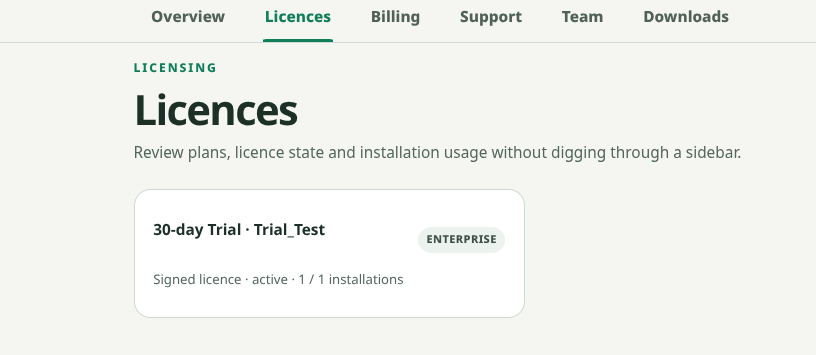
- In Client Area, select Licences and open the 30-day Trial licence.
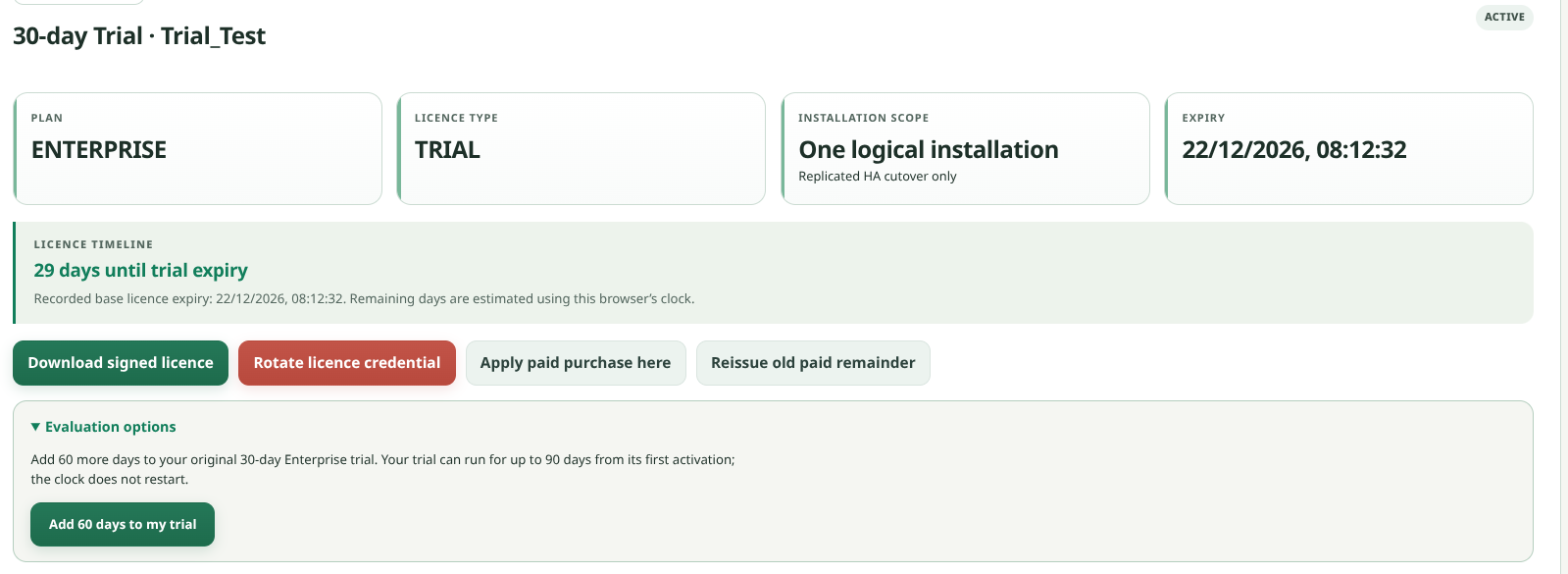
- Expand Evaluation options below the licence action buttons and select Add 60 days to my trial.
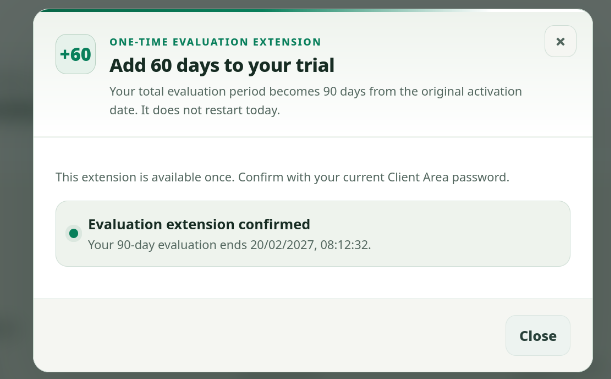
- Enter the current Client Area password and select Confirm extension.
- Check the confirmation and the revised expiry in the licence timeline. The extension is available once, and the action disappears after it has been used.
Do not know the Client Area password? Check the password-setup email sent to the registered address when first entering through the Client Server bridge. The setup link is valid for 24 hours. If it was missed or has expired, use Forgot password on the Client Area sign-in page. Your Client Area password may differ from the local Client Server administrator password.
See the full illustrated extension walkthrough for the password-confirmation dialog, success message and updated expiry screen.
Administration is performed from the SSLNexus web interface after initial administrator setup. Use named administrator accounts for normal access rather than the installation token.
Administrator Access
The first administrator is created from the short-lived setup URL. After setup, sign in with that named account. Keep administrator access limited to staff responsible for certificate operations, integrations and product configuration.
Organisation Settings
Set the organisation identity and managed parent domains that SSLNexus is expected to manage. Each parent domain receives a DNS TXT ownership challenge. Passive parent-domain discovery remains disabled until that challenge is verified, then administrators can explicitly enumerate names and observe the certificates currently presented over HTTPS before deciding which deployments to adopt.
Primary Free Domain And Domain Deletion
On a new Free installation, normal onboarding establishes the first registered parent domain as its locked primary. No extra fallback-selection step is required. While the effective allowance is one parent domain, Free cannot change or delete that domain. To establish a different primary, reinstall SSLNexus through ordinary onboarding or purchase an active capacity pack and use the existing-domain selection controls. Reinstallation does not erase any existing customer-scoped two-year restriction resulting from deliberately removing a certificate from management.
A customer may change the Free fallback primary only when the current entitlement permits more than one parent domain. Business includes 25 domain slots, and Enterprise uses the domain allowance in its active contract; Free can gain another domain slot through an active pack. Select only from parent domains already registered and verified within the installation. A fallback-domain change never creates a new domain, selects individual certificate survivors or increases Free's deployment-target allowance.
For an installation entitled to multiple parent domains, deleting a registered domain asks: Do you want to remove all certificates under management for this domain? Choosing No removes the registration but preserves associated managed certificate records and the authoritative domain binding required for continuing entitlement; it does not trigger a two-year name restriction. Choosing Yes presents the affected domain/target-associated managed certificates and CN/SAN names, explains the two-calendar-year new-admission restriction that applies to confirmed deliberate managed-certificate removals on metered plans, and requires a separate confirmation. Neither option deletes or revokes already-issued TLS certificates or private keys. See Deleting A Parent Domain.
Online Paid Licence Expiry Warning
At 20 calendar days or fewer before an online Business or Enterprise licence expires, if no effective paid renewal, extension or replacement entitlement exists, the Client Server shows an expiry warning. It identifies the saved Free fallback domain, projected number of Free-eligible Linux Apache/Nginx managed certificates, effective Free capacity (including still-active capacity packs) and the expected loss of paid-only management rights, such as Windows/IIS. The preview does not downgrade early or perform the random survivor selection.
For an unrenewed online metered Starter or Business plan, Free fallback follows a two-day (48-hour) grace period. Enterprise paid rights follow the contract, with a 48-hour interval for existing passive monitoring before Free limits apply. Free uses its domain and certificate allowances and one selected Linux Apache or Nginx adapter. Its five included managed certificates can be deployed to any supported Linux host. Existing deployed certificates continue to function until their own expiry unless independently affected, but SSLNexus cannot renew or manage those outside the Free entitlement. A fallback-primary change before expiry is possible only when the current domain allowance exceeds one and only to another existing eligible domain. See Refresh, Expiry And Changes.
Team Access And Roles
Use named accounts and assign the least privilege needed for each team member.
Full product administration, including organisation settings, licensing, identity providers, CA configuration, plugins and team access.
Certificate and deployment operations, including issuing and renewing certificates, managing deployment targets and approving renewal work where policy requires approval. Operators cannot change licensing, identity, organisation, plugin or team-access configuration.
Read/write access to network-appliance targets and their certificates only. Network Operators can enter and rotate encrypted appliance API credentials, run Test connection and Test CA independently, and operate network-bound certificate jobs without access to Linux/Windows targets or broader platform administration. This is designed for network teams that share the same SSLNexus gateway with infrastructure/security teams and should not require duplicate installations. LDAP/OIDC groups can be mapped directly to this role. See Network Operator role.
Operational visibility without permission to create, renew, approve or change configuration.
New local team members do not receive a temporary password by email. SSLNexus sends a single-use password setup link that expires after 24 hours; the account does not have a usable local password until setup is completed.
For a local vendor account, follow vendor onboarding. The administrator provides a 72-hour activation token and the supplier sets a password in the Vendor Portal. For controller licence activation, follow first workspace setup. Identity providers can use Microsoft Entra ID, Okta, Google Workspace or Generic OIDC, with LDAP / Active Directory retained for directory-backed staff authentication. Staff and vendor SSO can be enabled independently on the same connection.
Connections
CA credentials, Windows credentials and other integration secrets are entered through the relevant configuration screen. Test each connection before relying on it for renewal or deployment. Certificate destinations are configured separately from CA adapters and deployment targets so managed certificates can also publish to HashiCorp Vault KV v2, AWS Secrets Manager or Azure Key Vault.
Administrative Recovery
Administrative recovery is performed from a trusted console on the Client Server when the normal administrator interface cannot be used. Run the read-only checks first:
sudo ssl-nexus-admin recover doctor
sudo ssl-nexus-admin recover doctor --json
If an existing local Administrator account has lost access, reset that account from the console. Replace the example address with the account to recover:
sudo ssl-nexus-admin recover admin --email [email protected] --generateThe generated password is shown once. Alternatively, supply a new password through standard input rather than a command-line argument:
printf '%s\n' 'A-new-strong-password' | sudo ssl-nexus-admin recover admin --email [email protected] --password-stdinSign in with the recovered account and replace any temporary password. Recovery revokes that account's existing sessions and records the action in Activity & audit. To check online Authority connectivity and current licensing identity, run sudo ssl-nexus-admin recover licence. To activate an offline licence, import the signed file under Product licence.
recover doctor validates configuration, application state, Administrator availability, protected secret files, the target encryption key, registered target credential decryption and local service health. recover admin resets an existing local Administrator and revokes its existing sessions. recover licence performs an immediate licensing-authority check.
/etc/ssl-nexus/secrets/targets.key when encrypted deployment targets exist. Restore that key from a backup; replacing it would make the stored credentials unreadable.Notifications
Administrators can configure Smart Mail alerts through Google Workspace, Microsoft 365 or SMTP from Notifications. Alerts cover certificate expiry, certificate-operation failures, target-health failures, vendor certificate failures and licence health. Delivery is de-duplicated so the same event does not generate repeated email every scheduler cycle. See Email notifications.
Updates
Apply SSLNexus updates using the package format used for the original installation. Before replacement, SSLNexus creates a pre-upgrade recovery snapshot and validates the new service after installation. If the new service fails its health or version check, the previous state and runtime are restored automatically when a valid snapshot is available. Existing administrators, vendors, targets, licence identity and certificate state are retained.
Recovery And Independent Heartbeat Monitoring
Keep one active controller. Protect backups as sensitive plaintext unless your storage independently encrypts them. Preserve the original encryption master key, machine/TLS identities, pairing state, plugin approvals/secrets, artifact/pending-request state and canonical database together. A newly generated replacement master key cannot decrypt existing state; upgrades refuse implicit replacement when the original is missing.
Restore to an isolated host, authenticate restored credentials, check plugin approval hashes and verify a representative deployment and renewal. Reconcile interrupted jobs before retrying. The read-only key audit checks credential decryption without printing secret values.
Client Server includes an opt-in outbound HTTPS heartbeat. Configure its endpoint in an owner-only secret file and arrange missed-ping alerts at an independently hosted monitor with its own notification channel. Pings follow successful scheduler/worker cycles and contain no inventory, customer identifiers or keys. A stopped, blocked or failed cycle stops pings. Set grace above the longest expected cycle, including synchronous jobs, and use monitor maintenance controls during planned work. A heartbeat is not proof of certificate correctness or automatic failover; verify stopped-plane alert and recovery on your host.