

Certificates And Renewal
Managing one wildcard certificate across several HTTPS sites? Open the wildcard workspace guide to add hosts, review adoption offers and track renewal on each binding.
Retained Certificates And Reissue
Available in SSLNexus 1.0.11. The local certificate store retains issued material for recovery and redeployment. It remains inside the customer installation; it is not a provider-hosted key store.
| Action | Purpose | CA and charging behaviour |
|---|---|---|
| Reissue certificate | Redeploy a retained, valid certificate after configuration changes or migration. | No CA request, issuance-rate-limit use or new issuance charge. |
| Request new certificate | Obtain a newly issued certificate when new material is required. | The selected CA’s normal validation, limits and charges apply. |
| Renewal | Replace a certificate approaching expiry through its normal lifecycle. | Uses the configured CA and renewal policy. |
Before Reissuing
- Confirm that the retained certificate is still valid and appropriate for the intended hostname and target.
- Check the selected deployment adapter and application/site configuration. Reissue preserves the recorded web-server identity.
- Choose Reissue certificate. The original private key, serial number and expiry date are preserved.
- Review the deployment and live certificate verification result. Reissue does not extend validity.
If suitable retained material is absent, expired or incompatible, Reissue stops. It does not silently fall back to paid or rate-limited CA issuance. A changed hostname/SAN requirement may need a new certificate.
Migration And Recovery
Restore the matching SSLNexus database, configuration and certificate material before redeployment. If storage encryption is enabled, restore its original unlock key too. Losing the key cannot be repaired by generating another unlock key. Reissue cannot recover material that was never retained or has been lost.
Discovery And Removing Entries
Repeated observations of the same certificate are grouped with their endpoints. Loopback-only observations and unrelated default certificates from hostname probes are excluded. Remove entry removes an unwanted inventory record and stops waiting automation while retaining deployed certificate files, configuration, issuance history and stored material. A running operation can prevent removal until it finishes.
The same removed certificate observation stays removed on subsequent scans; a newly renewed certificate can be discovered again. Inventory removal is not certificate revocation and does not reset committed certificate usage. It is also not a general licence-capacity release operation: removing an observation does not by itself make an issued certificate no longer count toward management entitlements. Use the separate revocation workflow when cancellation at the CA is intended; check managed-certificate counting before assuming an inventory action changes paid capacity.
Keystore protection and recovery · Shared-server deployment safeguards
Domain Deletion And Removal From Management
Deleting a registered parent domain and removing a managed certificate are separate actions. When the current entitlement allows more than one parent domain, SSLNexus asks the exact question: Do you want to remove all certificates under management for this domain? The single primary domain on Free without a capacity pack cannot be deleted or changed.
No: Remove the domain registration only. Keep installed certificates, private keys, issuance history and existing managed certificate associations. The underlying verified-domain/coverage association may still occupy a domain entitlement slot while those managed certificates depend on it. Later issuance or renewal must still satisfy the effective licence; a real loss of entitlement suspends management rather than silently deleting a certificate.
Yes: Display the exact managed logical certificates on the affected domain and target, their CN and SAN names, and shared-SAN effects. Require a separate informed confirmation before Remove From Management is applied to those reviewed certificates. On a metered plan, a deliberate, confirmed removal bars new metered-management admission of the affected canonical CN/SAN names for two calendar years. It does not revoke, delete or invalidate already-issued certificates or local keys. Removing a domain registration without choosing Yes does not start this restriction. If the selected fallback primary is removed, an eligible existing replacement must be expressly selected where possible; SSLNexus never picks a new primary automatically.
Other actions remain separate: Remove entry clears a discovered/inventory observation, not licensed management coverage; Revoke a certificate acts through the CA when revocation is intended; paid-plan expiry or capacity restriction suspends management without being deliberate removal. See Certificate Counting And Capacity Packs and Discovery.
Use SSLNexus to bring certificate issuance, renewal status and deployment into one operational view, regardless of the CA supplying the certificate.
Add Or Request A Certificate
From Certificates, add an existing certificate for management or create a new request using a configured certificate authority. Supply the common name, SANs and any provider-specific information requested by the selected connector.
Choose Deployment Targets
Associate the certificate with one or more registered deployment targets. SSLNexus uses the target application and operating system to select the appropriate deployment path.
Renewal
The dashboard highlights certificates approaching expiry. Certificates configured for automated renewal are renewed according to the policy shown in the interface and then deployed to their assigned targets.
Verify Deployment
After deployment, review the result in SSLNexus. Failed jobs remain visible for review rather than being silently ignored. Correct the target or connectivity problem and retry the deployment.
Manual Control
You can run issuance, renewal or deployment on demand when maintenance or change windows require direct operator control.
Deployment Ownership
Each managed certificate records who is responsible for completing its deployment. This is operational responsibility; it does not change certificate ownership or the issuing certificate authority.
SSLNexus Automation
SSLNexus deploys the certificate through a registered target.
Internal Staff
Your team completes deployment outside the automated target workflow.
External Vendor
Deployment is handed to an assigned vendor and can be followed through the Vendor Portal lifecycle.
Custom Flow
A custom integration is responsible for deployment.
SSLNexus infers a default when the certificate is added. Administrators and Operators can change it from Certificates. The Operational overview shows the current estate split by deployment owner, and changes are recorded in Activity & audit.
For a DNS challenge, follow Issue and verify a DNS-01 certificate.
Revoke A Certificate
When the configured certificate authority supports revocation, SSLNexus exposes a Revoke action for the managed certificate. Select a reason, confirm the permanent operation, and SSLNexus sends the revocation through the CA connector.
After successful revocation, the certificate is marked revoked, its automatic renewal schedule is disabled, and the operation is recorded in Activity & audit. Sectigo, DigiCert and Let’s Encrypt have native revocation support in this release.
Post-Deployment Live Verification
After deployment, SSLNexus checks the certificate served by the intended endpoint using the requested hostname. When a known origin sits behind a TLS-terminating proxy, inspect origin verification separately from the public edge certificate. See Origin And Public TLS Verification below.
The Certificates page records the verification state, timestamp and result message. A mismatch or unreachable endpoint is reported as verification_failed so a successful file copy cannot be mistaken for a successful live deployment.
Renewal Policies
Advance notice of validity changes. Open Overview → Certificate validity notices to see announced lifetime changes for this estate. Each notice links to the official source and gives its effective date. An industry maximum sets a ceiling. An issuer profile describes a specific product. The affected count covers managed certificate renewal policies. Possible matches need more trust or product information. Where the current leaf already fits the announced lifetime, it is counted separately.
The shortest projected recovery time runs from the first permitted renewal attempt to the expiry of a hypothetical replacement. Review any timing conflicts or limited retry margin under Certificates → Renewal policy. Installed certificates continue to use their actual leaf dates. For ambiguous issuers, confirm the trust and product with your CA, then set the certificate metadata advisory_trust to public or private. Use advisory_issuer and advisory_profile when the issuer or product needs identification. For example, the Let’s Encrypt classic profile uses letsencrypt and classic.
In Certificates, open Create certificate automation for a new record or Renewal policy for an existing one. Under Renewal window, choose the percentage of the leaf’s lifetime remaining (1–99%) or days before expiry (1–3650). New forms start at 30% remaining. Existing policies keep their saved unit until you change it.
At 30% remaining, a 47-day certificate becomes eligible 14 days, 2 hours and 24 minutes before expiry. A 198-day certificate becomes eligible 59 days, 9 hours and 36 minutes before expiry. Each new leaf supplies its own start and expiry dates.
Choose Preview timing to see eligibility, the daily check, the first permitted attempt and the time left for retries. Review any minimum-lead or deployment-window conflict before saving. A certificate awaiting first issuance shows an example until its dates are known.
To convert several certificates, select them in the certificate table, choose Renewal timing and preview the group. Review the affected count, newly eligible records, unknown dates, minimum-lead conflicts and earliest attempt. Choose Apply timing to update the reviewed records. If a certificate changes in the meantime, preview its current version before retrying. Use the same steps to return to days. Overview lists renewal schedules and recovery margins that need attention.
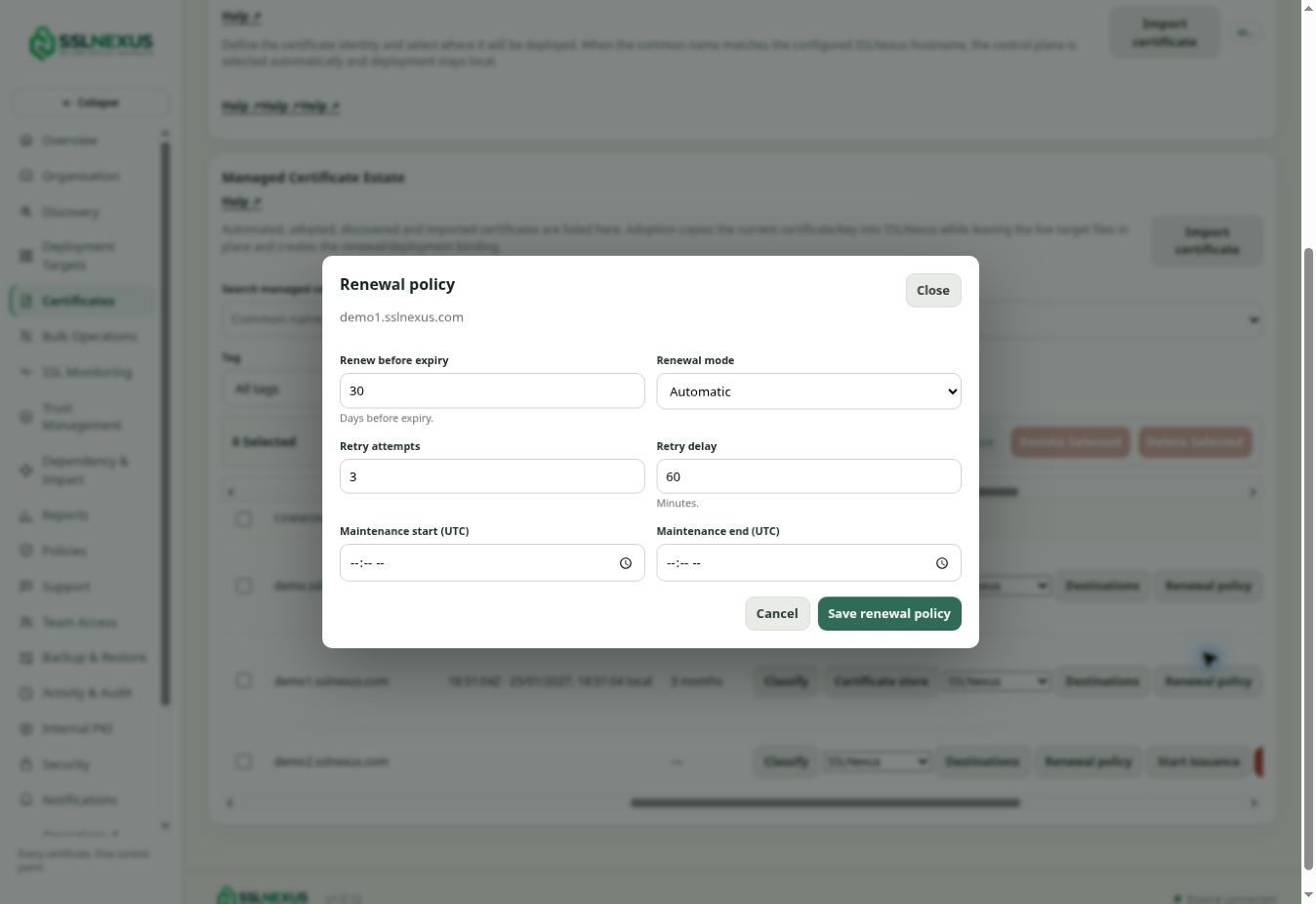
Renewal policy is configured per certificate. Set the renewal window, choose automatic renewal or require operator approval, configure retry attempts and delay, and optionally restrict execution to a UTC maintenance window.
Approval-required renewals remain pending until an Operator or Administrator approves them. Retryable failures are re-queued according to policy, while maintenance-window renewals wait for the next permitted window instead of running outside it.
Groups, Tags And Metadata
Use classification to keep large certificate estates navigable and ready for policy automation.
Groups
Operational collections such as Production, Customer portals or Lagos DC. Groups are intended to become policy and bulk-action targets.
Tags
Lightweight searchable labels such as internet-facing, pci or vendor-managed.
Metadata
Structured key/value context such as team=Infrastructure, region=NG and criticality=high.
The Certificates page searches across certificate identity, CA, target, groups, tags and metadata, and can filter directly by group or tag. Classification changes are recorded in Activity & audit and travel with normal backup/restore state.
Bulk Operations And CA Migration
Use Bulk operations to preview and execute renewals, revocation, classification or CA migration across a selected certificate set. Policy checks run per certificate before execution.
Check Dependency Impact Before Destructive Changes
Before revoking or removing a certificate, open SSL Monitoring and Dependency & Impact to review the known deployment targets, hosts, applications, CMDB/service mappings and destinations that depend on it. The graph reports known SSLNexus relationships and should not be treated as proof that undiscovered infrastructure does not exist.
Origin And Public TLS Verification
After deployment, review the latest job and Live Verification. The origin must serve the deployed certificate with the requested hostname as SNI. A proxy may serve a different public certificate; public observations are separate when the origin is known. See verification behind proxies and IPv6 and the illustrated first-installation guide.
Reissue certificate restores a valid retained certificate without contacting the CA. Request new certificate (replace) requests new material from the CA. Choose the retained-certificate action when only deployment needs to be repeated.
Issue A Certificate For A Remote Nginx Server
This walkthrough uses a dedicated Linux target and Let’s Encrypt HTTP-01. The captures show an SSLNexus 1.0.12 demo installation; use your own hostnames and addresses. For the SSLNexus administrator hostname itself, follow the local installation route instead: it does not require remote SSH credentials.
1. Complete Setup And Verify Ownership
Install SSLNexus and complete first setup. Complete your 30-day Enterprise trial activation or activate a signed lifetime Free licence before managing certificates. Configure Organisation and its parent domain, then publish and verify the TXT record in Discovery. Domain ownership in SSLNexus and validation by the CA are separate checks.
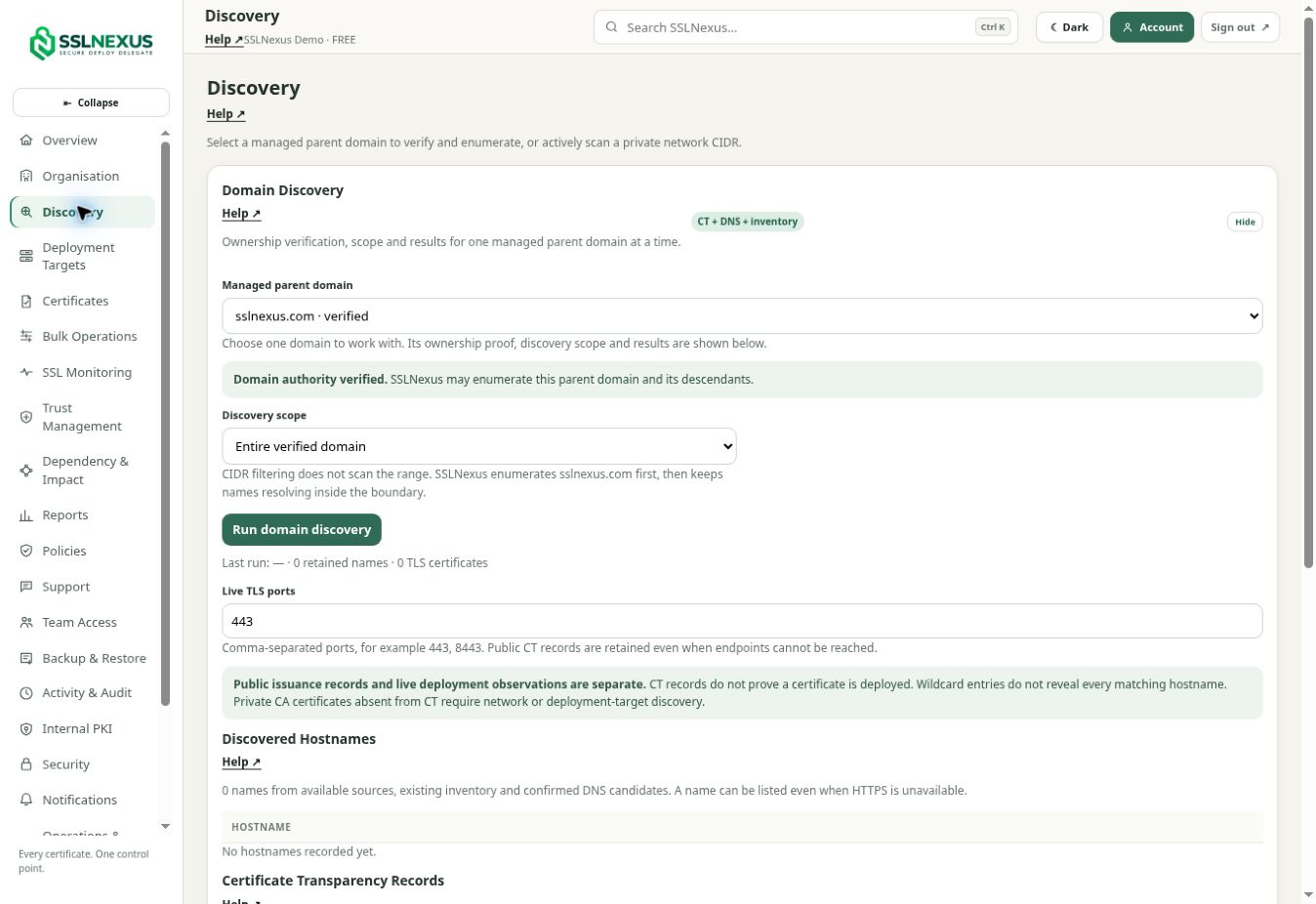
2. Prepare The Remote Server
Ensure its public hostname resolves to the intended Nginx server, its resolver works, and its clock is accurate. For HTTP-01, public TCP/80 must reach the challenge handler on this remote target; the target must reach the CA over HTTPS. Confirm every published IPv4 and IPv6 address is correct. A pre-existing HTTPS listener is not required to establish SSH management access.
In Deployment Targets, enter an inventory name, expand Linux SSH Setup and choose Prepare unique key. Review and run the generated setup commands on that target, then use Verify and use key. Register its address, Linux/SSH platform, Nginx application, SSH username and port. Where the optional Python interpreter field is available, enter a verified absolute path such as /usr/bin/python3 to skip interpreter discovery; otherwise leave automatic discovery enabled.
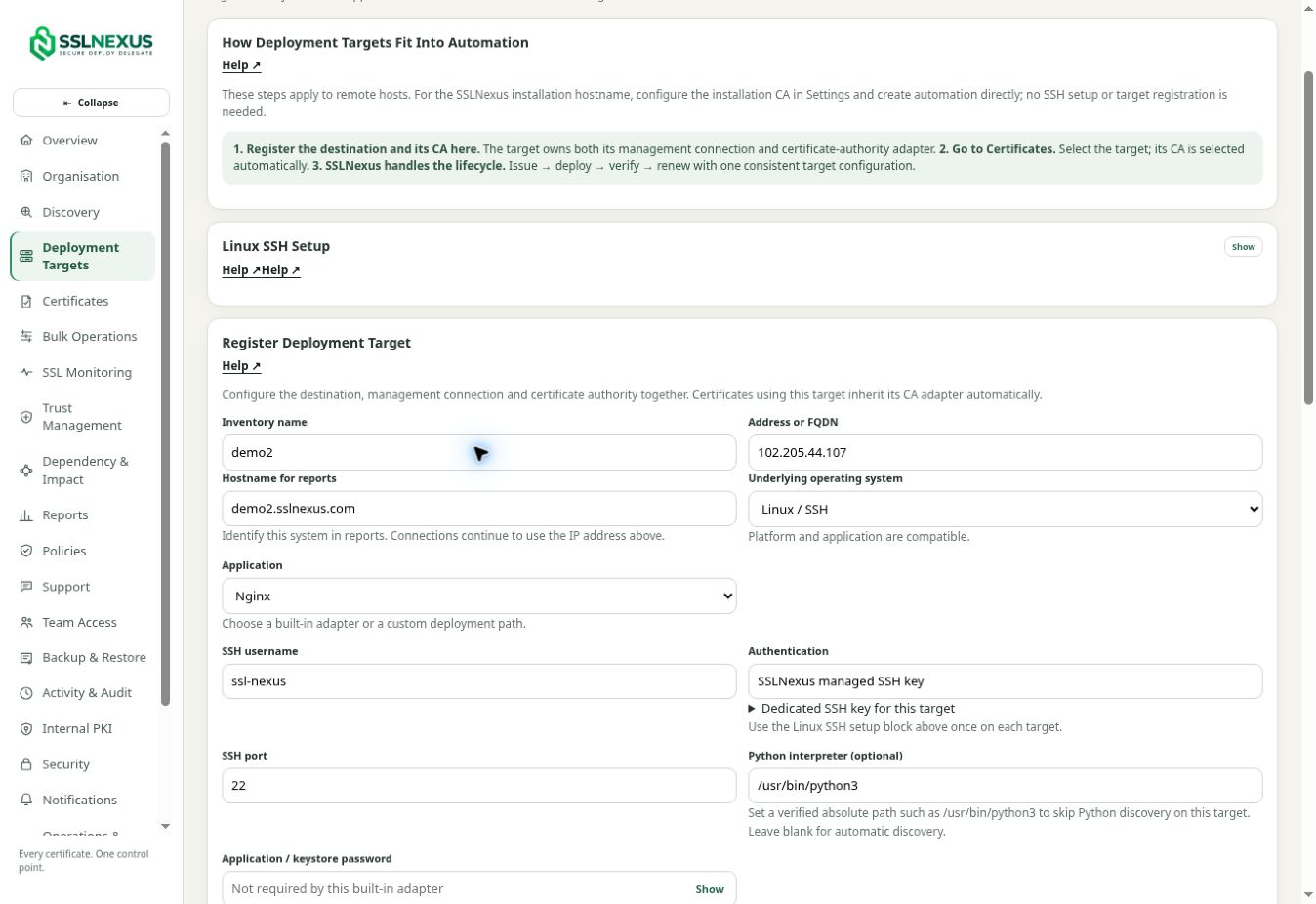
3. Configure And Test The Target CA
Choose Let’s Encrypt in the target’s Certificate Authority section, enter your operational account email and select Production for a publicly trusted certificate. Save the target. Run Test CA and Test connection. A successful management check confirms authenticated access, not successful certificate issuance. Resolve reported failures before proceeding; absence of TLS does not explain an SSH authentication failure. See deployment target setup.
4. Create Certificate Automation
Open Certificates, expand Create Certificate Automation, enter the common name and any required SANs, and select the saved remote target. Confirm its resolved CA and deployment path. Review the key size, renewal window, retry policy and deployment owner, then choose Create automation once. Follow the running job; do not submit another issuance while it is active.
5. Confirm The Live Result
Check three separate results: certificate status active, automation succeeded, and Live Verification verified. Open the application over HTTPS using its intended hostname. Issued material alone is not proof of a successful live deployment.
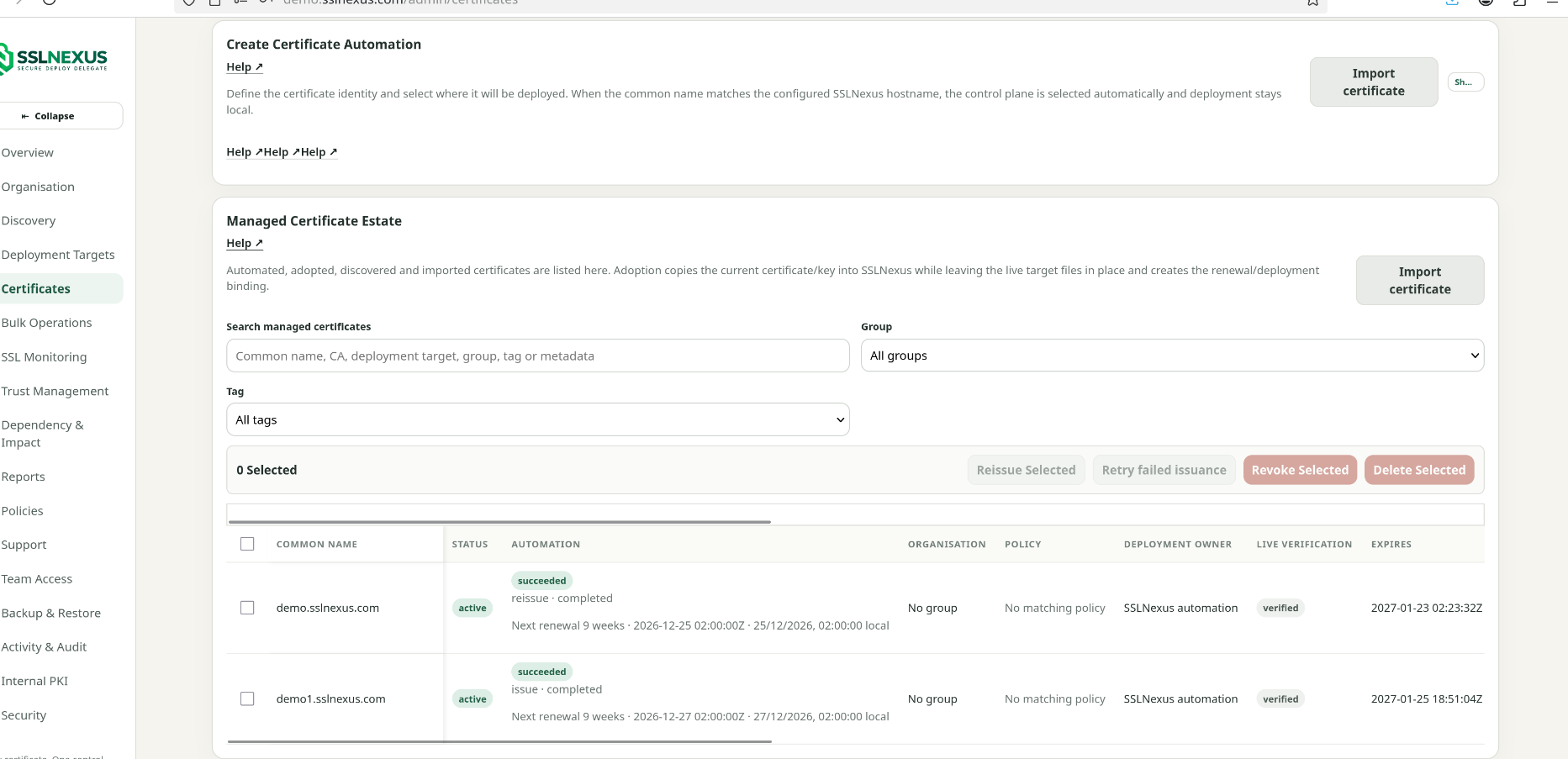
If a proxy terminates public TLS, compare origin and public results as described in origin verification. Do not disable verification to hide a real mismatch.
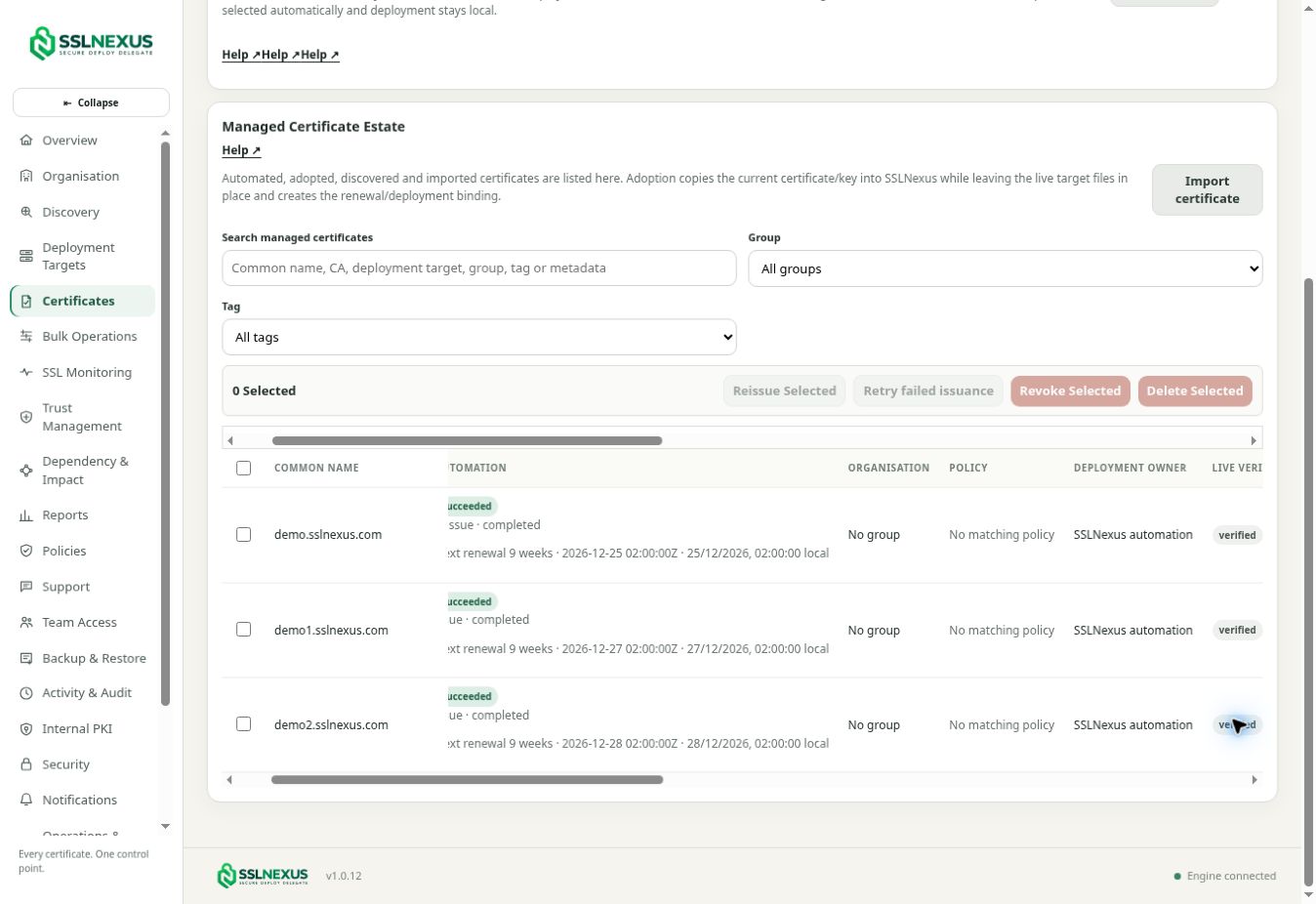
6. Review Renewal And Recovery
Open Renewal policy for the certificate. Review the renewal window, automatic or approval-required mode, retry settings and optional UTC maintenance window. The certificate row shows its next scheduled renewal. A scheduled date does not mean a renewal has already been tested.
Reissue certificate redeploys suitable retained material without requesting a new certificate or extending expiry. Request new certificate contacts the CA for fresh material. Use the action that matches the task. See remote ACME DNS troubleshooting if issuance stops before the CA request.
Recover A Rebuilt Deployment
When a managed target is rebuilt, first restore its supported management access and application configuration. If SSLNexus still holds a valid certificate and matching private key, use Reissue certificate to redeploy that retained material. This does not contact the CA or extend the certificate expiry.
Verify the target binding and live TLS result after deployment. Use Request new certificate when fresh material is needed; this contacts the CA. Do not reuse a private key suspected of compromise.